As an Amazon Associate, I earn from qualifying purchases.
In this Siri Remote review, I check whether the new model's Find My, Precision Finding, and built-in speaker make it worth buying for an Apple TV 4K.
Finally, a Findable Siri Remote
 I use Apple TV every day, and the Function101 is usually the first remote I grab. I haven’t had the new Siri Remote in my hands yet, so this Siri Remote review sticks to what actually changed.
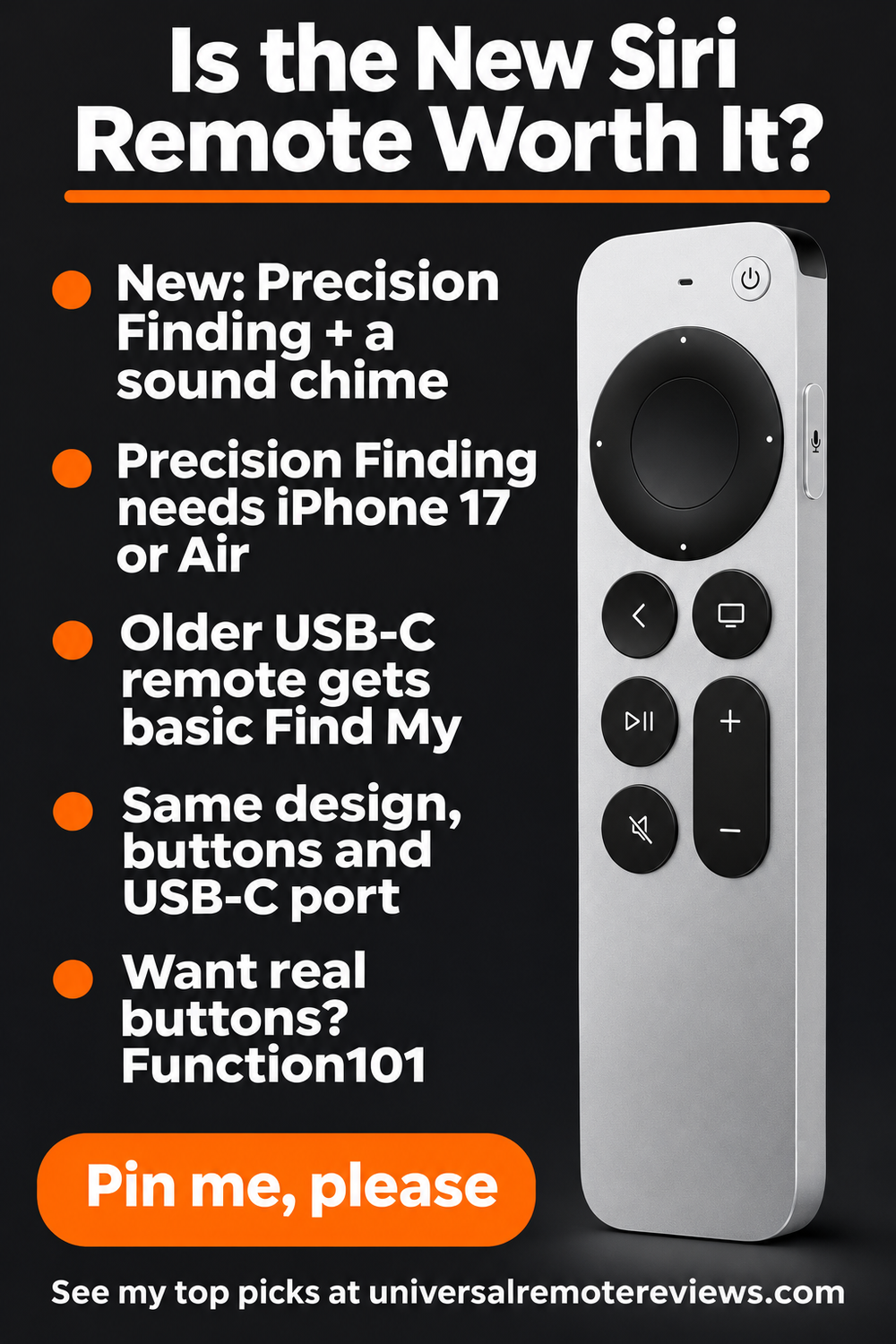
The new model keeps the same design and adds Precision Finding plus a speaker that chimes. The catch is that your USB-C Siri Remote just got basic Find My for free.
A lost remote stalls a lot of TV time. Nielsen’s The Gauge put streaming at 49.6% of all TV viewing in August.
Key Takeaways
- Buy it for Precision Finding: arrows guide you to the remote with an iPhone Air, iPhone 17, or newer.
- Keep your USB-C remote: it now shows in the Find My app, but can't chime or point the way.
- Want buttons instead? The Function101 adds media keys, with no Siri or Find My.
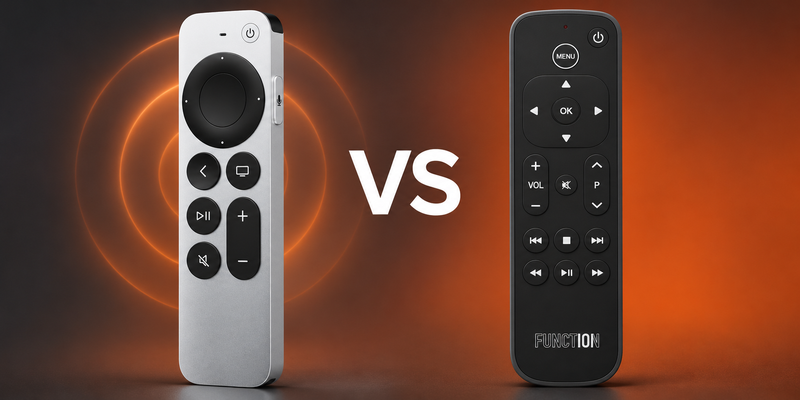
New Siri Remote vs Function101 Comparison Table
The following table backs up this Siri Remote review, comparing the new Siri Remote and the Function101 on finding, controls, power, and the USB-C Siri Remote.
| Best for Find My | Best for Buttons | |
|---|---|---|
| Product Image |

|

|
| Model | Apple Siri Remote (4th Generation) | Function101 Button Remote for Apple TV |
| Best Fit | Best fit: Choose the new Siri Remote if your remote keeps going missing. | Best fit: Choose the Function101 for real playback buttons beside your Siri Remote. |
| Find My App | ||
| Voice | Siri button with voice search | None, buttons only |
| Precision Finding | ||
| Controls | Touch-enabled clickpad with outer ring | Full buttons with d-pad and media keys |
| Plays a Sound | ||
| TV + Audio Controls | TV power, volume, and mute | TV, soundbar, or receiver volume via IR |
| Rewind + Fast-Forward Keys | ||
| Power | Rechargeable, USB-C charging port | Two AAA batteries |
| Compatibility | Every Apple TV 4K and Apple TV HD | Every Apple TV and Apple TV 4K |
| vs USB-C Siri Remote | Adds Precision Finding and a speaker | Pairs alongside it and adds media keys |
| Where to buy |
#1 – Siri Remote (4th Generation): Best for Find My
Best Fit
Choose the new Siri Remote if your remote keeps going missing.
Key Specifications
Apple Siri Remote (4th Generation) is the pick for Find My in this Siri Remote review, and Apple left the rest alone. It keeps the USB-C model’s touch-enabled clickpad with a circular gesture on the outer ring, the Siri button, TV power and volume, and the USB-C charging port, and its enclosure uses recycled aluminum.
The new parts are a built-in speaker you can trigger from the Find My app and Precision Finding, which points you to a lost remote. Macworld says it relies on Bluetooth Channel Sounding, so the arrows only work with an iPhone Air, iPhone 17, or newer, never the iPhone 17e.
Pros
- Plays a chime from Find My, even with an older iPhone
- Precision Finding points the way on newer iPhones
- Works with every Apple TV 4K and the Apple TV HD
- Same clickpad, Siri button, and USB-C charging
- Controls TV power, volume, and mute
Cons
- Precision Finding skips the iPhone 16 and older
- No new buttons or design changes
- Hard to justify if your current remote never goes missing
The 4th generation Apple TV Siri Remote has a touch-enabled clickpad and USB-C charging for Apple TV 4K and HD.
#2 – Function101 Button Remote: Best for Buttons
Best Fit
Choose the Function101 for real playback buttons beside your Siri Remote.
Key Specifications
Function101 Button Remote for Apple TV is the pick if you would rather press buttons than swipe a clickpad. It’s still the remote I reach for first, for the reasons in my Function101 vs Siri Remote comparison.
It pairs over Bluetooth alongside your Siri Remote instead of replacing it, adds dedicated play, pause, rewind, and fast-forward keys, and uses IR for TV, soundbar, or receiver volume, mute, and power. It runs on two AAA batteries and has no Siri, no speaker, and no Find My.
Pros
- Dedicated play, pause, rewind, and fast-forward keys
- Pairs alongside your Siri Remote, not instead of it
- IR handles TV, soundbar, or receiver volume and power
- Two AAA batteries, so no rechargeable battery to top up
- Works with every Apple TV and Apple TV 4K model
Cons
- No Siri button, so voice search is out
- No Find My, speaker, or Precision Finding
- IR functions need line of sight
Function101 is offering my readers special savings on this remote. Click Function101 below for the deal, or shop at Amazon if you prefer.
How to Choose Your Next Apple TV Remote
Start with the iPhone in your pocket and the remote you already own, then decide how often it actually goes missing.
What I Look For When I Buy
These are the checks behind this Siri Remote review, and the ones I would make before paying for the new Siri Remote.
- ✓Check Your iPhone. Precision Finding needs an iPhone Air, iPhone 17, or newer; on an older iPhone you get the chime and standard Find My.
- ✓Check Your Current Remote. A 2nd-generation or USB-C Siri Remote already shows up in Find My and still gets months of battery life per charge; the original black remote doesn't show up.
- ✓Count the Lost-Remote Hunts. If you hunt for it weekly, the speaker alone is a real remote finder; if it never leaves the coffee table, keep what you have.
- ✓Decide Between Swipes and Buttons. The Function101 adds real media keys and IR control for your TV and soundbar, but no Siri or Find My.
- ✓Update Your Software. You need iOS 27.2 and tvOS 27.2; each firmware update installs itself while the remote is charged near the Apple TV, and you can check it under Settings, Remotes and Devices.
What to Check Before You Buy
- ✕Skip it if you're buying the new Apple TV 4K, which includes it.
- ✕Skip it if your USB-C remote rarely goes missing and your iPhone predates the iPhone 17.
- ✕Skip it if you want physical playback buttons; the Function101 covers that.
FAQs
These five questions cover the Find My, iPhone, and compatibility details most likely to decide whether you upgrade.
1. What does the new Siri Remote add over the USB-C model?
Two things drive this Siri Remote review. A built-in speaker lets the Find My app play a sound from the remote, and Precision Finding shows on-screen arrows on a supported iPhone. Everything else carries over from the USB-C model, which Apple lists with Bluetooth 5.0 and an IR transmitter: the clickpad, Siri button, TV power, volume, mute, and charging port.
2. What does this Siri Remote review say about iPhone support for Precision Finding?
For the new Siri Remote, Apple lists the iPhone Duo, iPhone Air, and iPhone 17 or later, but not the iPhone 17e, which leaves the iPhone 18 Pro on the list too. Macworld reports the remote uses Bluetooth Channel Sounding instead of Ultra Wideband, so an iPhone 16 doesn't qualify. Older iPhones still get the chime and standard Find My.
3. Does my current remote get Find My, or do I need the new Siri Remote?
If it is a Siri Remote (2nd generation) or later, it already works, a key point in this Siri Remote review. With iOS 27.2 and tvOS 27.2, it shows in the Devices tab of the Find My app and says whether you are getting closer. It can't play a sound, and the original all-black remote does not show up.
4. Where does this Siri Remote review land on older Apple TV models?
It works with them. Apple says the new Siri Remote works with the Apple TV HD and every Apple TV 4K. It also comes in the box with the new Apple TV 4K, which adds an A19 chip and Siri AI, so don't buy a spare remote if you're upgrading the box. Otherwise, the remote is sold separately.
5. Is the new Siri Remote worth it if I already own a Function101?
Only if your Siri Remote keeps disappearing. The Function101 pairs alongside a Siri Remote instead of replacing it, so you can keep both: buttons for everyday playback and the Siri Remote for voice search. It has no Find My, though, so in this Siri Remote review the 4th-generation remote is the one that solves the couch-cushion problem.
My Verdict: Is the New Siri Remote Worth It?
 This Siri Remote review lands here: the new model is worth it if you lose your remote often or own an iPhone that supports Precision Finding; if your USB-C remote stays put, keep it and spend the money elsewhere.
- Best for Find My: Choose the new Siri Remote if you lose your remote often, own an iPhone Air or iPhone 17 or newer, or need a replacement anyway.
- Keep If You Own It: Choose your USB-C Siri Remote if it still works and Find My distance hints are enough to track it down.
- Best for Buttons: Choose the Function101 if you want real play, rewind, and fast-forward buttons for guests and kids alongside your Siri Remote.
If you want to compare every option, including universal remotes that also run your TV and soundbar, see my guide to the best remotes for Apple TV.

Please subscribe for a fun take on tech—tips, unboxings, reviews & more!